


Microsoft Fabric is a growing service that contains an overwhelming number of new features and services. One of its best features is mirroring. You might have a variety of operational databases that need to be analyzed to help your business leaders make informed decisions.
In the old days, we had to develop and maintain ETL pipelines between operational databases and analytical warehouses. It is very expensive for companies to create and maintain these pipelines. You might even have some replication tools, such as HVAC, FiveTran, and Striim, that can help you replicate your operational databases to different destinations. These are great tools, but they can get expensive very quickly. Also, adding more vendors and keeping up with their product versions is not a joke.
That’s why I try to keep all my operational and data warehouse databases under the same cloud provider. I can easily use mirroring to replicate operational databases without hiring additional ETL developers or buying a third-party replication tool.
In this blog post, I will guide you to mirror your Azure Cosmos DB to the Fabric. It was much easier to replicate Azure Cosmos DB data to Synapse. Configuring data replication to Microsoft Fabric involves different steps, potentially handled by different IT departments.
Step 1:
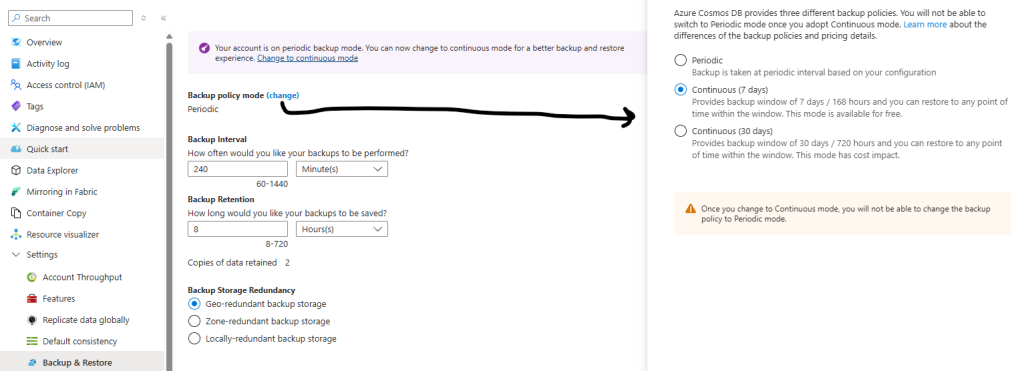
You want to be sure that your Azure Cosmos DB Backup policy is configured to Continuous. You can select 7 days or 30 days, as long as it is a continuous type, you’re good!
Step 2:
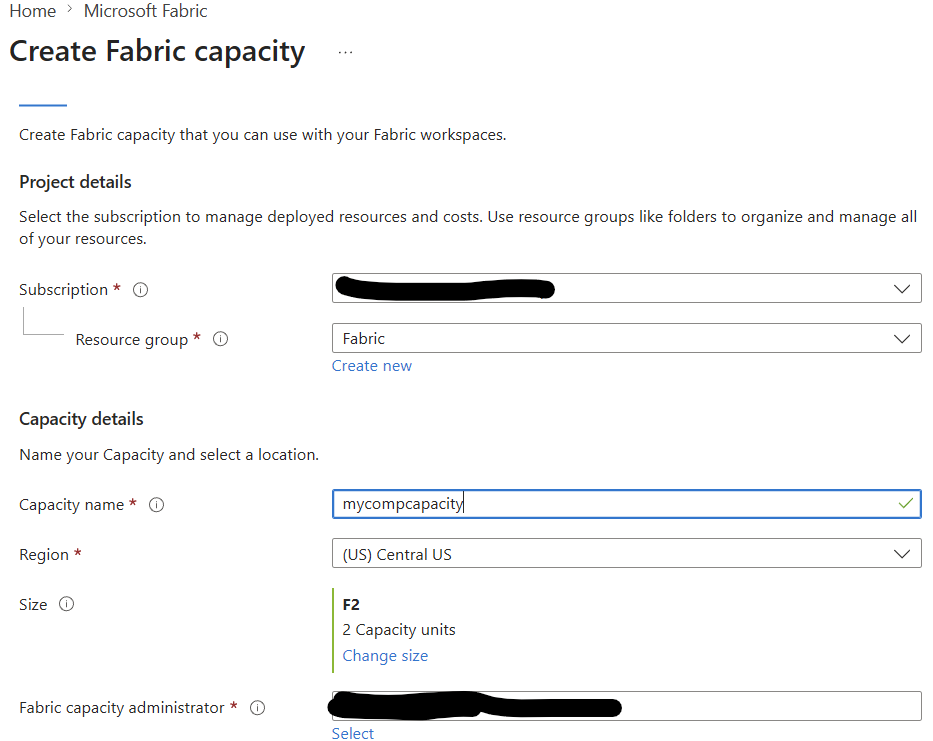
You need to enable the Fabric service by selecting a capacity. You might need to contact your Cloud IT department to complete this part. Since companies try to control cloud costs, you may not have the right to purchase the service.
If you need to set up this part yourself. Start typing “Fabric” in the Search resources box and click on Azure Fabric. You need to select a subscription, probably create a new resource, and select the Resource Size to create a Fabric service. For Proof of Concept, I selected the cheapest capacity. You can pause the Fabric service if you are not using it.
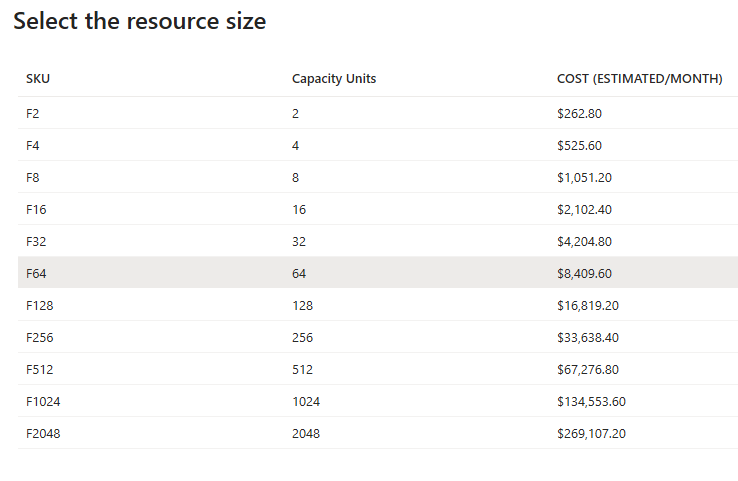
As of June 2026, here are the costs for different Microsoft Fabric resource sizes.
Step 3:
Next, go to https://fabric.microsoft.com. If this is your first time interacting with Microsoft Fabric, you might feel overwhelmed by the numerous buttons and options, leading you to question whether it is truly worth it. The good news is that you only need to set up replication once, and then you can easily connect to your replicated data.
First, if you don’t have a workspace, create one and give it a unique name. (Workspaces > New workspace)
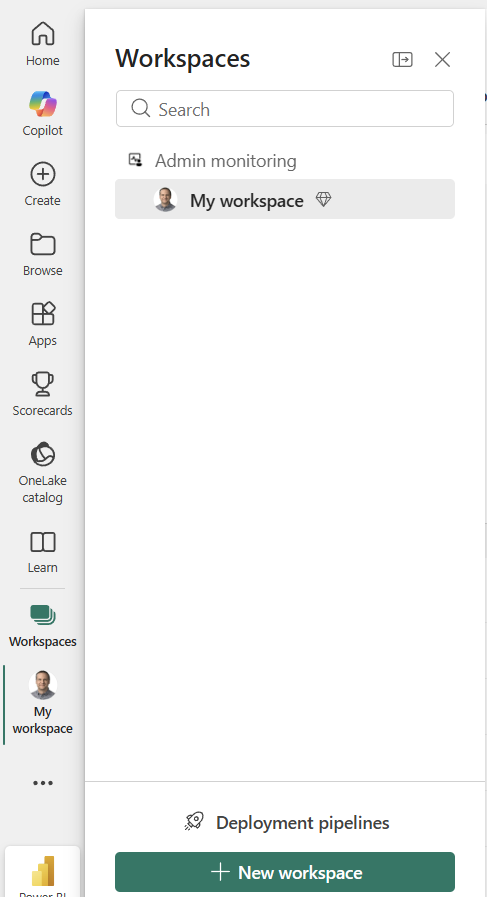
Unfortunately, the Fabric service you just created in Step 2 is not automatically mapped to you and your workspace. This is probably another IT service call that manages Power BI and Fabric requests in your company.
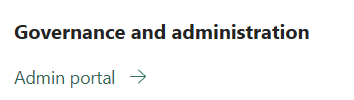
To do this on your own, click on the Gear icon in the top right corner and select Admin Portal.

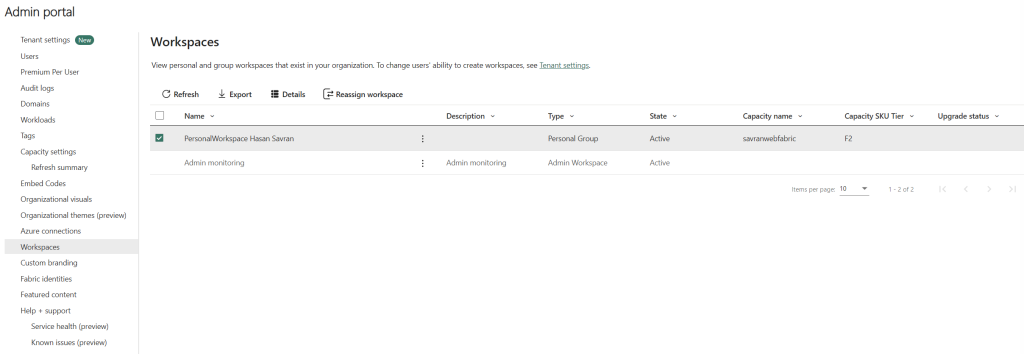
Then you will see a zillion menu options on the left side. Try not to lose your focus: click Workspaces, find your workspace, and click it. You will have the option to reassign the workspace
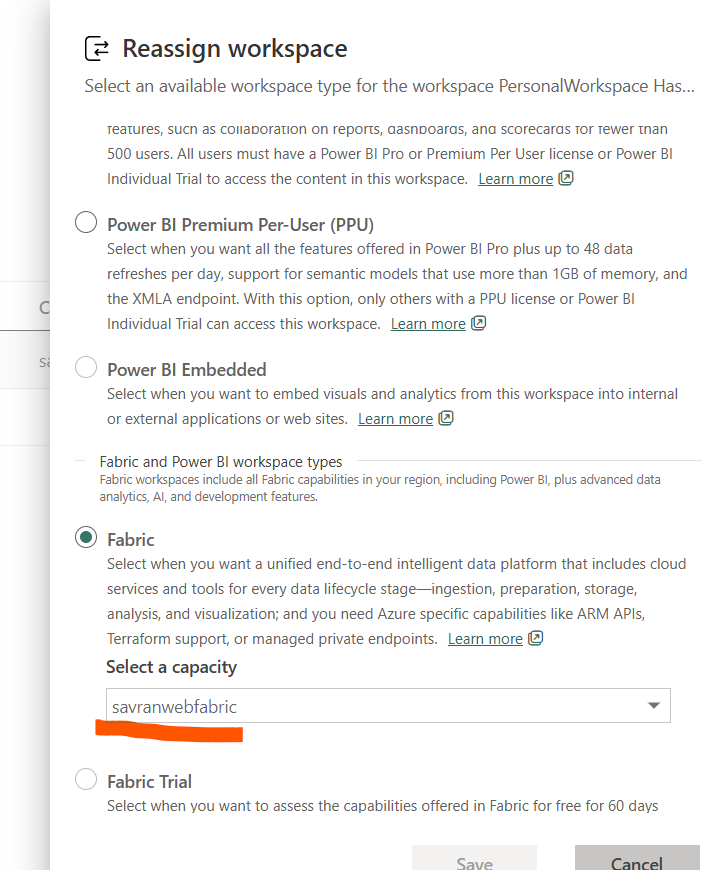
Click the Reassign option, and a new window will appear on the right. Find the Fabric and click on the drop-down to find the Fabric capacity you created in Step 2. Click Save, and now you should have the capacity you created in Step 2 for your Fabric workspace.
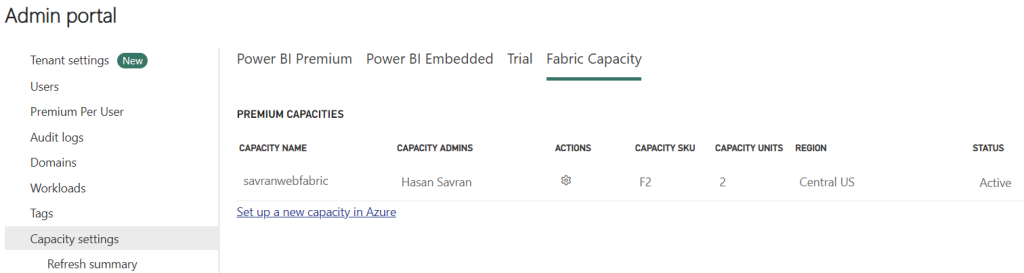
To verify, all is mapped and ready to use the capacity. Click Capacity Settings in the Admin Portal, and verify that your workspace has the Capacity available.
If all looks good, we are ready to use Fabric services. Click on your workspace button, then click on New Item and find the Mirrored Azure Cosmos DB option.
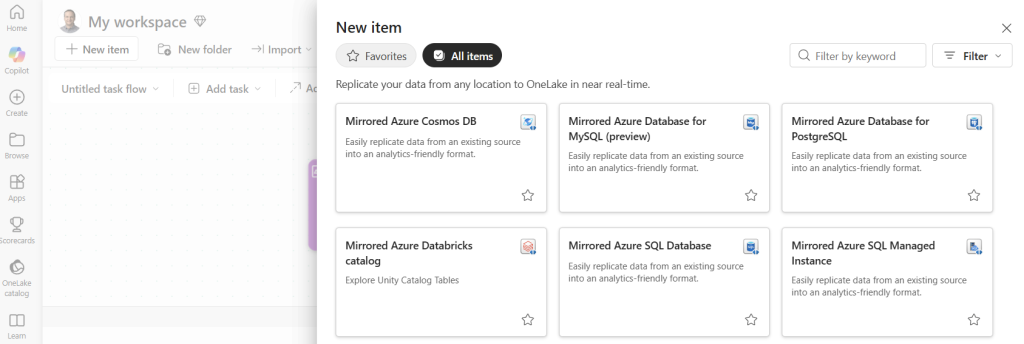
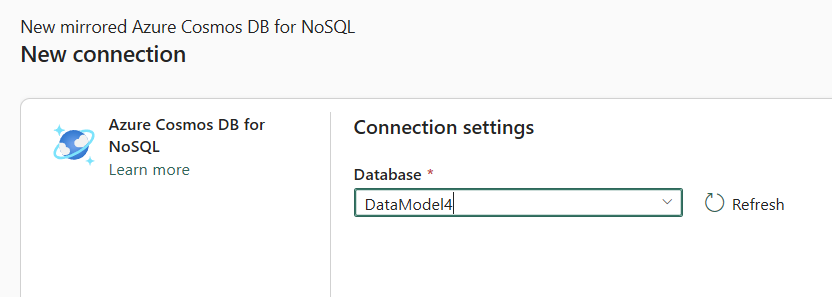
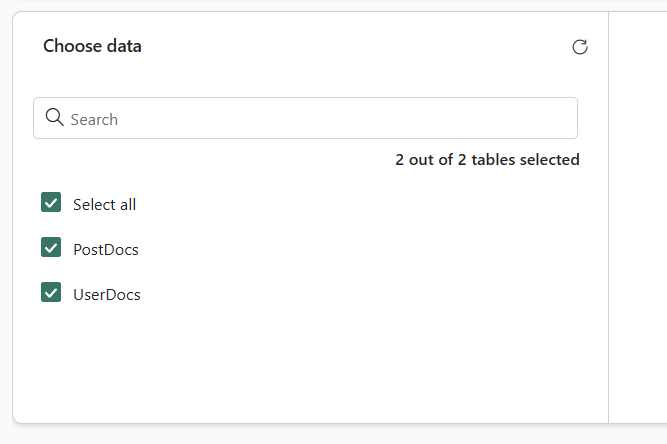
From this point, options should start to look familiar. In the next step, all you need to do is let Fabric know which Azure Cosmos DB database and tables you would like to replicate.
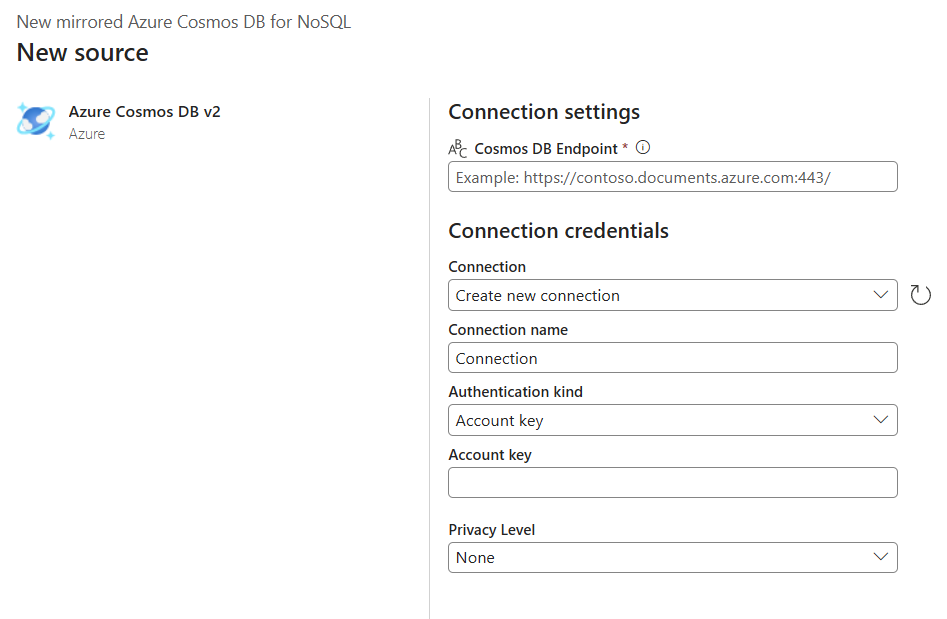
If the connection credentials are correct, the next step is to select the source database and tables. Then give a name to the Fabric destination where data is to be replicated.
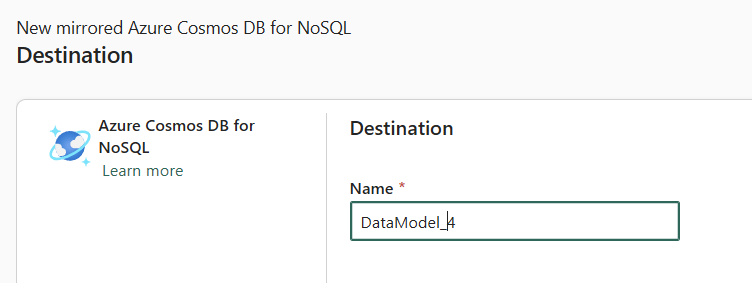
After this point, replication should begin, and you will see data movement in real time. A couple of things can go wrong here.
If you haven’t completed Step 1, Mirroring will fail because the backup type must be Continuous. Some public preview features, such as Masking Data, might cause mirroring to fail.
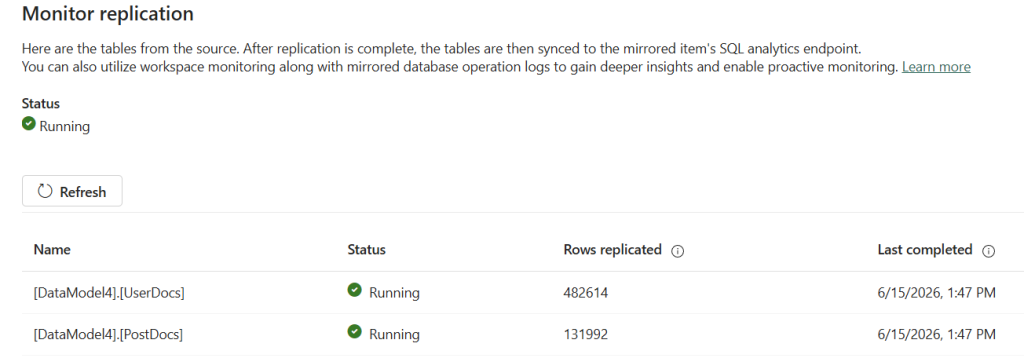
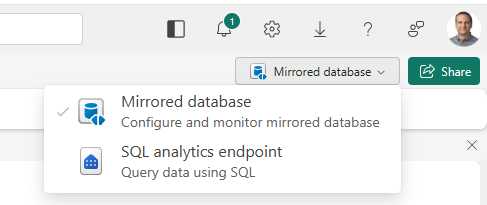
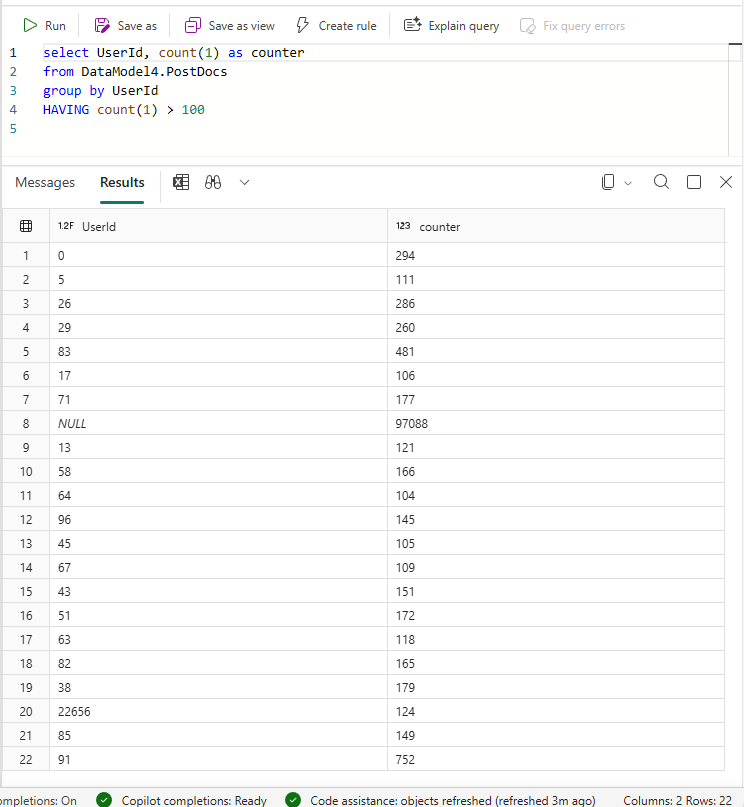
You can start to analyze your data in Fabric without worrying about Request Units. Click on the SQL Analytics endpoint option in the right corner to start. You can connect to the SQL Analytics endpoint from your application to execute analytical queries without using any Request Units.
Leave a Reply